How to Convert Image to PDF: Easy Ways to Create a PDF from Images
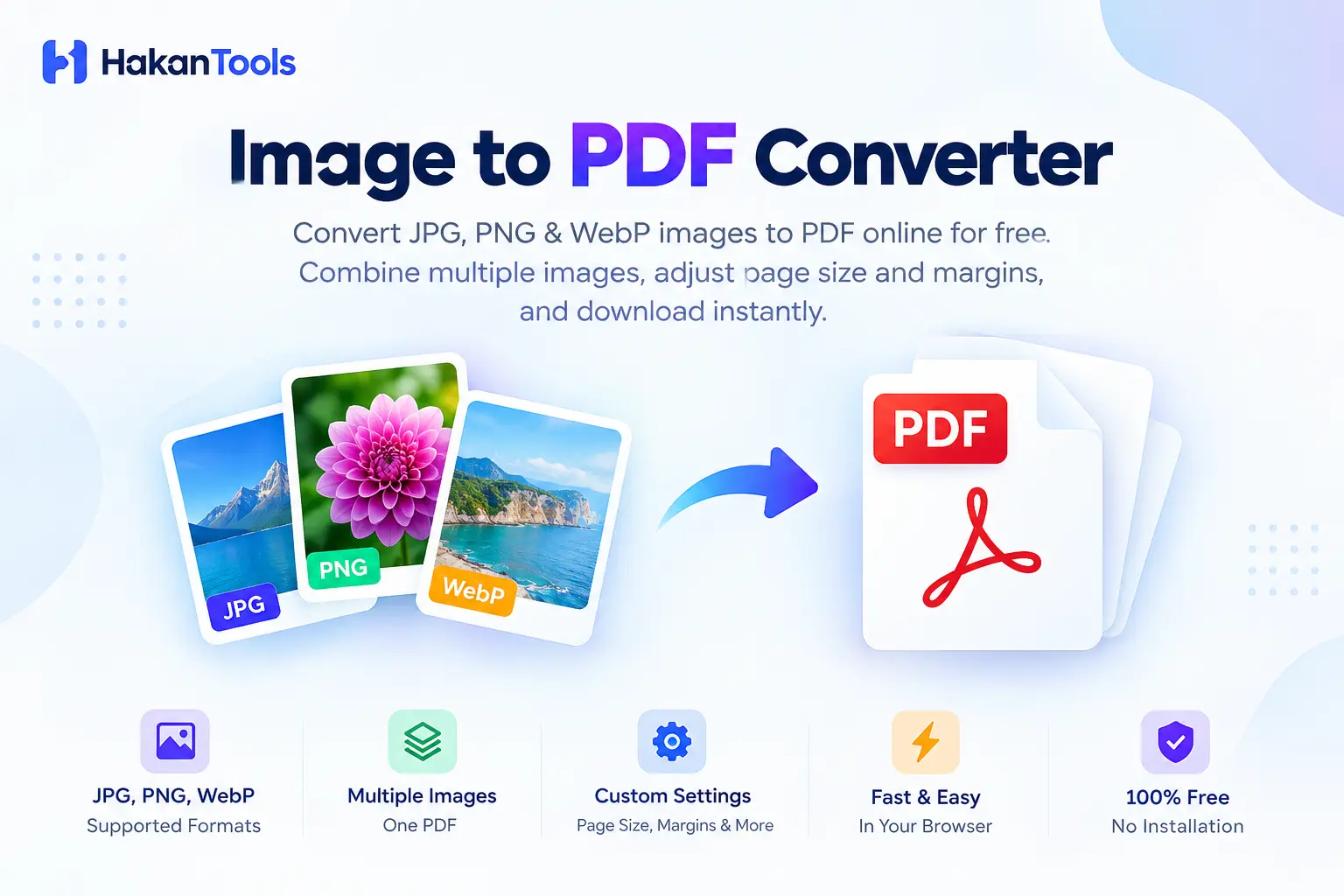
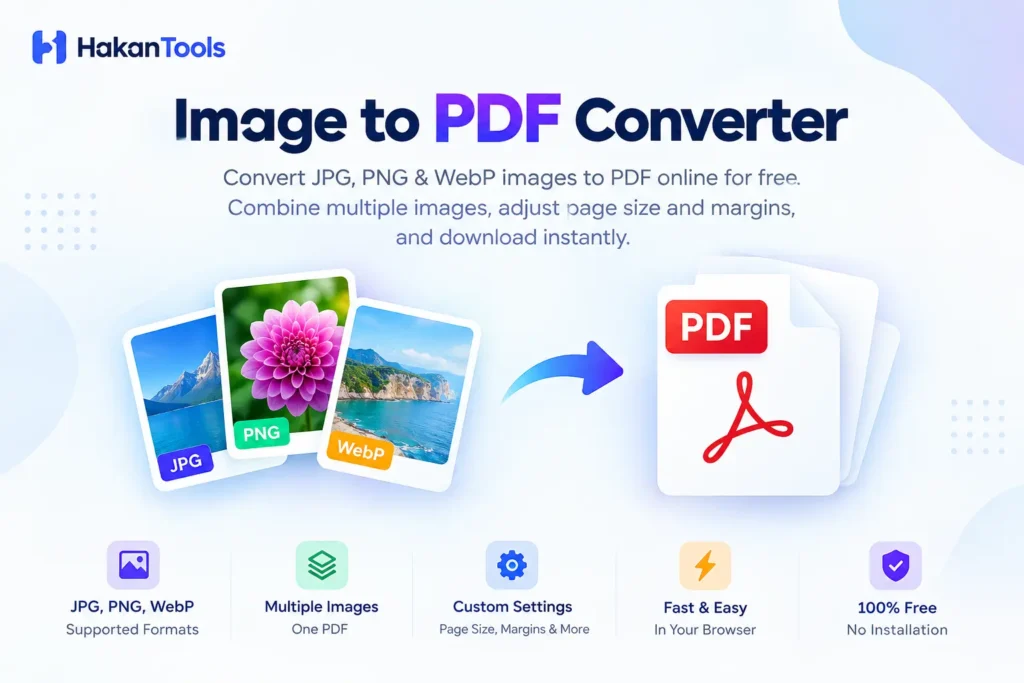
If you want to know how to convert image to PDF, you can do it quickly without complicated software. Images such as JPG, JPEG, PNG, and WebP can be converted into PDF files and, when you have multiple images, combined into a single document.
With the free HakanTools Image to PDF Converter, you can upload your images, arrange them in the order you want, choose PDF settings such as page size and orientation, and download the finished PDF directly from your browser.
Whether you need to convert photos, scanned documents, receipts, screenshots, notes, or assignments, this guide explains how to convert image to PDF step by step.
How to Convert Image to PDF Online
The easiest way to convert an image to PDF is to use an online image-to-PDF converter.
With HakanTools, the process is simple:
- Open the HakanTools Image to PDF Converter.
- Upload your JPG, JPEG, PNG, or WebP image.
- Add additional images if you want to create a multi-page PDF.
- Arrange your images in the correct order.
- Choose your page size and orientation.
- Select your preferred margin and quality settings.
- Generate the PDF.
- Download your new PDF file.
You don’t need to manually create a document or insert each image into a word processor.
Ready to convert your images? Try the free HakanTools Image to PDF Converter.
Step-by-Step: How to Convert Image to PDF
Step 1: Open the Image to PDF Converter
Start by opening the HakanTools Image to PDF Converter.
The tool is designed to make image-to-PDF conversion straightforward, so you can begin by adding your images.
Step 2: Upload Your Image
Select the image you want to convert from your device.
The converter supports common formats including:
- JPG
- JPEG
- PNG
- WebP
You can upload a single image if you only need one PDF page, or add multiple images when you want to create a multi-page document.
Step 3: Preview Your Images
After uploading your images, review the previews to make sure you’ve selected the correct files.
If you’re converting several images into one PDF, this is also the stage where you can check their order.
For example, if you have:
Page 1 → Page 2 → Page 3 → Page 4
make sure they appear in the correct sequence before creating the PDF.
Step 4: Arrange Multiple Images
One useful feature of an image-to-PDF converter is the ability to combine multiple images into one PDF.
This is particularly helpful when you have several photos or scanned pages that belong to the same document.
Instead of creating four separate PDF files, you can create one:
document.pdf
containing all four images as separate pages.
Step 5: Choose the PDF Page Size
HakanTools provides different page-size options for your PDF.
You can choose:
- A4
- Letter
- Fit to Image
A4 can be useful for documents, assignments, forms, and scanned pages.
Letter can be useful when your document is intended for Letter-sized paper.
Fit to Image can be useful when you want the PDF page to follow the dimensions of your image.
Step 6: Select Portrait or Landscape
You can also choose the orientation of your PDF.
Portrait is generally useful for vertically oriented documents and pages.
Landscape can be useful for wide photographs, screenshots, charts, and other horizontal images.
Choosing the appropriate orientation can help your images fit more naturally on the PDF page.
Step 7: Adjust Margins and Quality
Before creating your PDF, you can adjust the available margin and quality settings.
Margins control the space around your image on the PDF page.
Quality settings can help you choose between maintaining higher image quality and creating a smaller output file.
Choose the settings based on what you need the final PDF for.
Step 8: Create Your PDF
Once your images and settings are ready, generate the PDF.
The converter processes the selected images and creates your PDF according to the options you chose.
Step 9: Download the PDF
When the conversion is finished, download the generated PDF to your device.
You can then open, share, print, or store the PDF like any other document.
How to Convert Multiple Images to PDF
If you have several images, you don’t have to convert them individually.
You can use HakanTools to combine multiple images into one PDF.
For example, suppose you have five scanned pages:
- page-1.jpg
- page-2.jpg
- page-3.jpg
- page-4.jpg
- page-5.jpg
Upload all five images, arrange them in the correct order, select your preferred settings, and create one PDF containing all five pages.
This can be especially useful for scanned documents, school assignments, receipts, invoices, notes, and forms.
How to Convert JPG to PDF
JPG is one of the most common image formats, especially for photographs.
To convert JPG to PDF:
- Open the HakanTools Image to PDF Converter.
- Upload your JPG or JPEG image.
- Add additional JPG images if required.
- Arrange the images.
- Choose your PDF page settings.
- Generate the PDF.
- Download the result.
You can also combine several JPG images into a single PDF.
How to Convert PNG to PDF
PNG images are commonly used for screenshots, graphics, scanned pages, and other digital images.
To convert PNG to PDF, upload your PNG image to the HakanTools converter, choose your preferred page settings, and generate the PDF.
If you have several PNG files, you can add them together and create one multi-page PDF.
How to Convert WebP to PDF
WebP is a modern image format commonly found on websites and downloaded images.
If you need to use a WebP image as part of a PDF document, you can upload it to the HakanTools Image to PDF Converter and create a PDF from it.
You can also combine WebP images with other supported image formats when creating a PDF.
How to Convert Image to PDF on iPhone and Android
Learning how to convert image to PDF on a mobile device is essential when you need to upload documents on the go. Smartphone cameras take high-resolution photos, but many online portals require single PDF documents instead of multiple camera images.
With a mobile browser, how to convert image to PDF is just as quick as on a desktop. Open the converter on your phone, choose photos directly from your camera roll or photo gallery, adjust the page layout, and save the document straight to your device storage.
s It Safe to Convert Images to PDF Online?
Safety and privacy are top priorities when figuring out how to convert image to PDF with sensitive documents like IDs, bank statements, or personal records.
When exploring how to convert image to PDF using web tools, your uploaded images are processed securely and automatically deleted after conversion to ensure your personal files remain private and confidential.
How to Keep File Size Small When Converting Images to PDF
A common challenge when learning how to convert image to PDF is managing large file sizes. High-resolution photographs can result in heavy PDF files that exceed email attachment limits or website upload restrictions.
To optimize your files when following a guide on how to convert image to PDF:
- Select standard page dimensions (such as A4) rather than ultra-high image resolutions.
- Use moderate quality settings to balance image clarity with a smaller overall file size.
- Crop unnecessary backgrounds from your images before converting.
How to Convert Image to PDF in Bulk for Work and School
For students and business professionals, understanding how to convert image to PDF in batch mode saves significant administrative time.
Instead of handling file conversions one by one, batch processing allows you to upload an entire folder of scans or screenshots at once. Master how to convert image to PDF in bulk to compile multi-page reports, weekly receipts, or lecture notes in a single step.
Common Mistakes to Avoid When Converting Images to PDF
o get the best results when searching how to convert image to PDF, avoid these frequent mistakes:
- Incorrect Page Order: Always preview your uploaded files to confirm pages appear in sequential order before downloading.
- Mismatched Orientation: Ensure horizontal landscape photos aren’t forced into narrow portrait frames.
- Blurry Source Images: Double-check text readability before uploading, as converting an unreadable image to PDF will not improve its resolution.
Why Convert Images to PDF?
There are many reasons to convert an image into a PDF.
Easier Sharing
Instead of sending several separate image files, you can combine them into one PDF.
Better Organization
Multiple pages can be stored together in a single document.
Document Submission
Many online services, schools, businesses, and organizations use PDF as a standard document format.
Printing
PDF is widely used for printing documents and other content.
Record Keeping
Photos of receipts, invoices, forms, and other documents can be combined into PDFs for easier storage.
School and College Work
Students can combine photographs of handwritten notes, assignments, worksheets, and other pages into one PDF.
What Can You Convert to PDF?
You can use an image-to-PDF converter for many different types of images and documents.
For example:
- Photos
- Scanned documents
- Receipts
- Invoices
- Screenshots
- Notes
- Assignments
- Forms
- Certificates
- Business documents
- Printed pages
- Illustrations
If the content is already saved as a supported image file, converting it to PDF can make it easier to organize and share.
Can I Convert a Photo to PDF?
Yes. A photograph saved as JPG, JPEG, PNG, or another supported format can be converted into a PDF.
This can be useful when you photograph a receipt, document, form, assignment, or handwritten page and need to submit or share it as a PDF.
For multiple photos, simply upload them together and create a single PDF.
Can I Convert Images to PDF Without Installing Software?
Yes. An online image-to-PDF converter allows you to perform the conversion directly in your web browser.
With HakanTools, you can open the converter, upload your images, customize the available settings, create your PDF, and download the result without installing a separate desktop PDF application.
What Is the Best Image Format for PDF Conversion?
The right format depends on the type of image you’re working with.
JPG/JPEG is commonly used for photographs.
PNG is useful for screenshots, graphics, and images where transparency or lossless image data may be important.
WebP is a modern format commonly used on websites.
The HakanTools converter supports JPG, JPEG, PNG, and WebP, allowing you to convert common image formats into PDF.
Tips for Creating a Better PDF from Images
Before converting your images, a few simple steps can improve the final result.
Use Clear Images
Make sure your original images are sharp enough to read. A PDF cannot restore text or details that are missing from the original image.
Keep Pages in the Correct Order
If you’re combining several images, check their order before generating the PDF.
Choose the Correct Orientation
Use portrait for vertically oriented pages and landscape for wide images when appropriate.
Choose the Appropriate Page Size
A4 is often suitable for standard documents, while Fit to Image can be useful when preserving the image’s dimensions is more important.
Consider File Size
If your images are very large, the resulting PDF can also become large. Choosing an appropriate quality setting can help balance image quality and file size.
Frequently Asked Questions
How do I convert image to PDF?
To convert an image to PDF, upload your JPG, JPEG, PNG, or WebP image to the HakanTools Image to PDF Converter, choose your preferred settings, generate the PDF, and download it.
How do I convert multiple images to PDF?
Upload multiple images to the HakanTools converter, arrange them in the desired order, choose your page settings, and generate one PDF containing the images.
How do I convert JPG to PDF?
Upload your JPG or JPEG image to an image-to-PDF converter, select your preferred settings, and generate the PDF.
How do I convert PNG to PDF?
Upload your PNG image, choose your page size and other available settings, and create your PDF.
Can I convert photos to PDF?
Yes. Photos saved as supported image formats can be converted into PDF files.
Can I convert WebP to PDF?
Yes. HakanTools supports WebP images and allows you to convert them into PDF documents.
Can I combine images into one PDF?
Yes. You can upload multiple supported images and combine them into a single PDF document.
Can I choose A4 when converting an image to PDF?
Yes. HakanTools includes an A4 page-size option for creating PDFs.
Do I need to install software to convert an image to PDF?
No. HakanTools is a browser-based tool, so you can use the converter without installing separate PDF conversion software.
Is the HakanTools Image to PDF Converter free?
Yes. HakanTools provides the Image to PDF Converter free to use.
Conclusion
Knowing how to convert image to PDF can save time when you need to turn photos, scanned documents, screenshots, receipts, notes, or other images into a convenient document format.
With the HakanTools Image to PDF Converter, you can upload JPG, JPEG, PNG, or WebP images, combine multiple images into one PDF, arrange their order, select page settings, and download the finished document.
Instead of manually inserting images into another application, you can complete the conversion directly in your browser.
Try the HakanTools Image to PDF Converter and turn your images into a PDF in just a few steps.